Download · Version 1.3.6
Download LoungeOS for Windows
Install LoungeOS on one Windows computer, activate your free trial and connect your phones and tablets over Wi-Fi. Most venues are taking orders within an hour.
Can’t start the download? Open the LoungeOS download folder and choose the latest version.
System requirements
LoungeOS installs on one host computer. All other devices connect to it through a browser.
| Host computer (Windows) | Terminals (phones, tablets, screens) | |
|---|---|---|
| Operating system | Windows 10 or Windows 11, 64-bit | Any: Android, iOS, Windows, macOS |
| Processor | Intel or AMD multi-core | Any |
| Memory | 4 GB RAM minimum | Any |
| Storage | 2 GB free (for the database and menu photos) | — |
| Software | LoungeOS installer | A modern web browser |
| Network | Connected to your Wi-Fi router | Same Wi-Fi network as the host |
A laptop makes a good host because its battery keeps it running through short power cuts. See our POS hardware guide for printers, tablets and routers.
Install on Windows
- Download LoungeOS Setup 1.3.6.exe using the button above.
- Double-click the file and follow the installation wizard.
- When it finishes, open LoungeOS from the desktop shortcut or the Start menu.
Activate your licence (5 minutes)
LoungeOS uses a licence locked to your computer.
- Create your account at account.loungeos.app and choose the 30-day free trial or a paid plan.
- Launch LoungeOS. The activation screen shows a unique Machine ID.
- Copy the Machine ID with the Copy button.
- Generate your licence key. Paste the Machine ID in the licence management panel of your account dashboard.
- Apply the key. Paste the licence key into LoungeOS and click Activate.
Activation is the only step that needs internet. After that, LoungeOS runs on your local network.
First login
After activation, sign in with the default Super Admin account. Its email and password are in the default administration login section of the documentation.
Change this password immediately in your profile settings, then create personal accounts for every staff member. Never share the Super Admin login with staff. See roles and permissions.
Set up your venue in four steps
- Categories. Create menu categories and tick This is a food category for kitchen items. Leave it unticked for drinks so they go to the bar screen.
- Menu items. Add names, prices, photos (up to 5 MB), available quantities and variations.
- Floors and tables. Create your service areas and tables, and arrange the layout.
- Staff. Add staff with their role. For waiters, assign a floor. Each person sets their own password at first login.
Connect phones and tablets
- Make sure the host computer and the devices are on the same Wi-Fi network.
- Find the host’s local IP address, for example
192.168.1.15. - Allow incoming connections on port 2304 in the Windows firewall.
- On each device, open the browser and go to
http://192.168.1.15:2304(using your host’s IP).
Tip: give the host computer a fixed IP address in your router settings so the address never changes.
What’s new in 1.3.6
- Performance improvements for high-volume service
- Stronger security and more detailed audit logging
- Coming in 1.3.7: more interface languages (currently English and French)
Frequently asked questions
Is there a LoungeOS app for Android or iPhone?
You do not need to install an app on phones or tablets. They use LoungeOS through the browser, connected to the host computer on your Wi-Fi. The host itself runs on Windows.
When will the macOS version be available?
The macOS version (Apple Silicon and Intel) is in development. Follow this page or write to hello@loungeos.app to be told when it is released.
Windows Defender warns me about the installer. Is it safe?
Download LoungeOS only from this page or the official download folder. If Windows SmartScreen shows a warning for a new release, choose More info → Run anyway. Contact support if you are unsure.
The app shows “Database locked”. What should I do?
Only one copy of LoungeOS should run on the host. Close duplicate LoungeOS processes in Task Manager and reopen the app. See the knowledge base for more troubleshooting.
Run your next service on LoungeOS
Install LoungeOS on a Windows computer, connect your tablets and phones over Wi-Fi, and run real service for 30 days. Free, no credit card.
Explore more
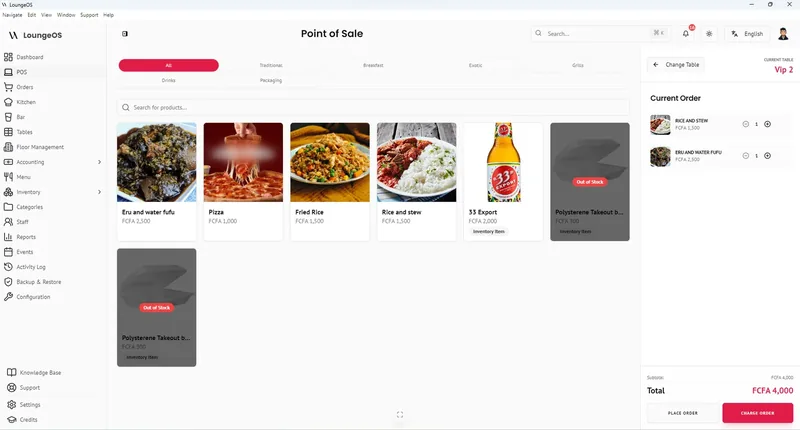
Pricing
One plan with every feature and unlimited terminals, priced for your region. 30-day free trial.
Learn more →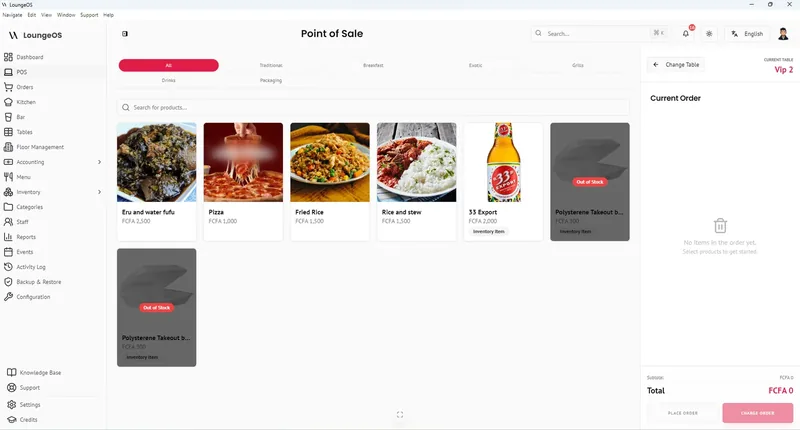
Offline POS
Orders, kitchen screens, payments and stock keep running on your local Wi-Fi with no internet.
Learn more →
Restaurant POS hardware guide
Host computer, tablets, thermal printer, Wi-Fi and UPS, with three budget setups.
Read guide →